
Display Monitor — User Guide
Short Reference
- &cRRGGBB — text color
- &bRRGGBB — background color
- &i^namespace:id — inline icon (item/block/fluid)
- &s^namespace:id — ME stock amount
- &s^namespace:id%N — ME stock scaled by 10 to the power of N (rounded)
- &d^namespace:id@WINDOW — rate over WINDOW, scaled to per 1 second
- &d^namespace:id%PER@WINDOW — rate over WINDOW, scaled to PER
- &( ... ) — math expression evaluation for example &( 2 + 2 )
- some other Markdown tokens also work
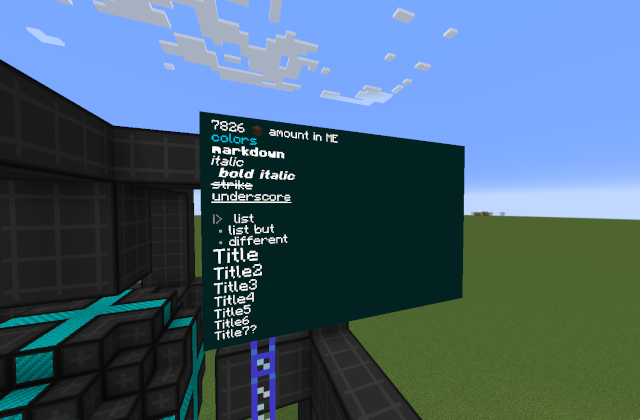
This guide explains how to configure, format text, and build multi-block walls with the Display Monitor part in CrazyAE2Addons.
Video Tutorial
What it is
The Display Monitor is a flat AE2 part you place on a cable face. When powered, it renders text (with simple formatting, colors, and inline icons) and can show live ME stock values and deltas.
Power: idle draw is minimal (about 1 AE/t). The monitor must be powered and active on your AE network to render.
Quick Start
- Place the Display Monitor on the desired cable face.
- Right-click it to open the Display menu.
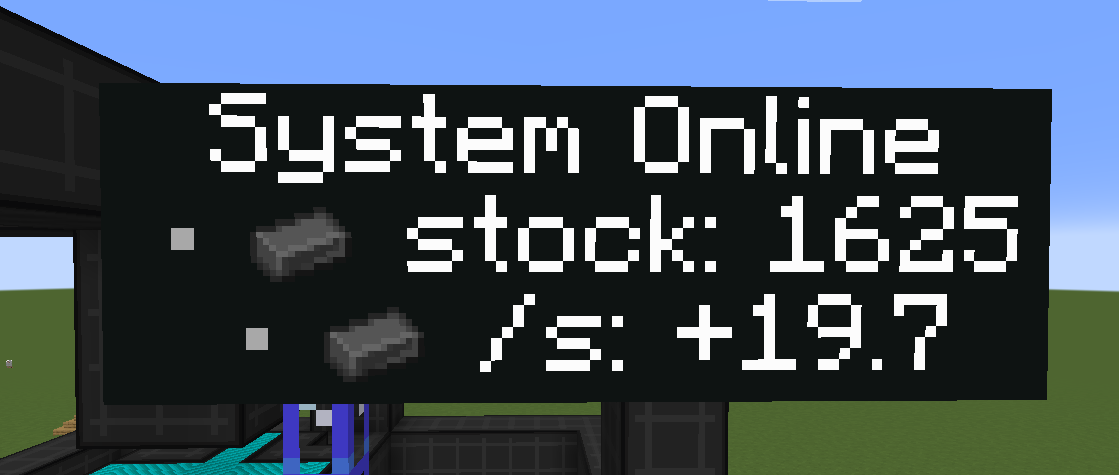
- In the text box, type your message. Example:
System Online * &i^minecraft:iron_ingot stock: &s^minecraft:iron_ingot * &i^minecraft:iron_ingot /s: &d^minecraft:iron_ingot%1s@1m
- Apply/Save. If the monitor is powered, the text appears.
New lines
You can use either real new lines (Enter) or the token &nl.
Text formatting
Inline styles (markdown-like)
- bold using **double asterisks**
- italic using single *asterisks*
- underline using double __underscores__
strikethroughusing double ~~tildes~~
Headings
Lines starting with one or more # become headings and render larger:
- # Heading 1
- ## Heading 2
- ### Heading 3
Bullets and indentation
- Start a line with "* " or "- " to get a bullet (•)
- Begin a line with one or more ">>" to add visible indentation markers
Colors
- Text color: &cRRGGBB (hex), affects following text until changed again.
- Example: &cFF0000 makes following text red.
- Background color: &bRRGGBB (hex), sets the whole panel background (opaque).
- Background is global per linked wall (set it once anywhere in the text).
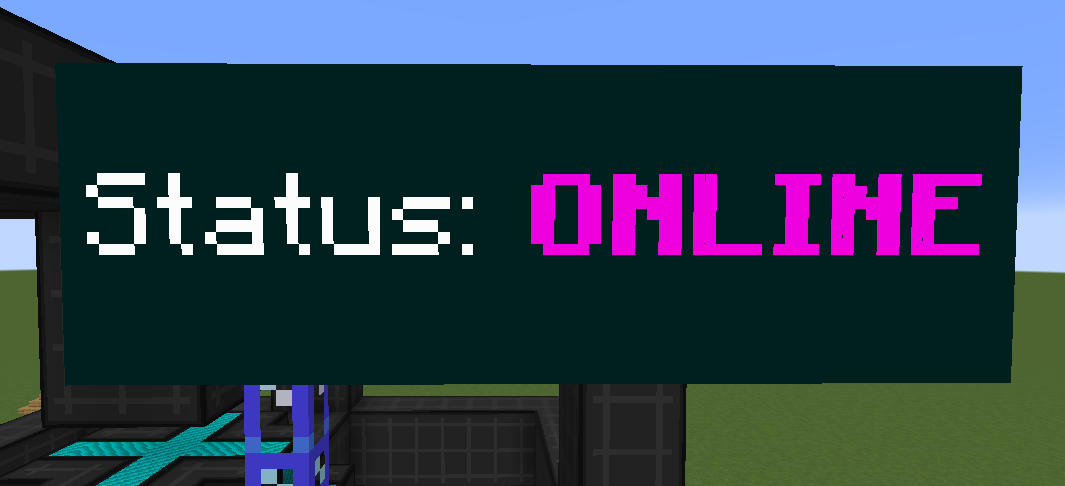
Example:
&b002020Status: &cF000E0**ONLINE**
Inline icons
You can render item, block, or fluid icons inline using:
&i^namespace:id
Examples:
- &i^minecraft:diamond
- &i^minecraft:oak_log
- &i^minecraft:water
If the id cannot be resolved, the token stays as text.
ME Stock tokens (auto-count from Storage)
You can display current amounts in your ME storage with:
&s^namespace:id &s^namespace:id%N
- &s^minecraft:oak_log shows the exact amount.
- Optional %N scales the number by 10 to the power of N with rounding.
Examples (if ME has 64):
- &s^minecraft:oak_log -> 64
- &s^minecraft:oak_log%1 -> 6
- &s^minecraft:oak_log%2 -> 1 (rounding)
Delta / rate tokens (change over time)
You can show a rate of change using:
&d^namespace:id@WINDOW &d^namespace:id%PER@WINDOW
Units:
- t = ticks
- s = seconds
- m = minutes
Meaning:
- WINDOW decides how far back the monitor looks when computing the change.
- PER decides what unit the value is scaled to (per second, per minute, etc.). If omitted, it defaults to per 1 second.
Examples:
- &d^minecraft:iron_ingot@10s Shows the average change rate over the last 10 seconds, scaled to per 1 second.
- &d^minecraft:iron_ingot%1m@5m Shows the average change rate over the last 5 minutes, scaled to per 1 minute.
- &d^minecraft:water@30s Works for fluids too (by id).
Notes:
- The window is clamped to at least 1 second and at most 30 minutes.
- Output is signed: positive shows +, negative shows -.
Math expressions
You can evaluate math expressions using:
&( expression )
The monitor evaluates these after tokens are resolved, so you can do things like:
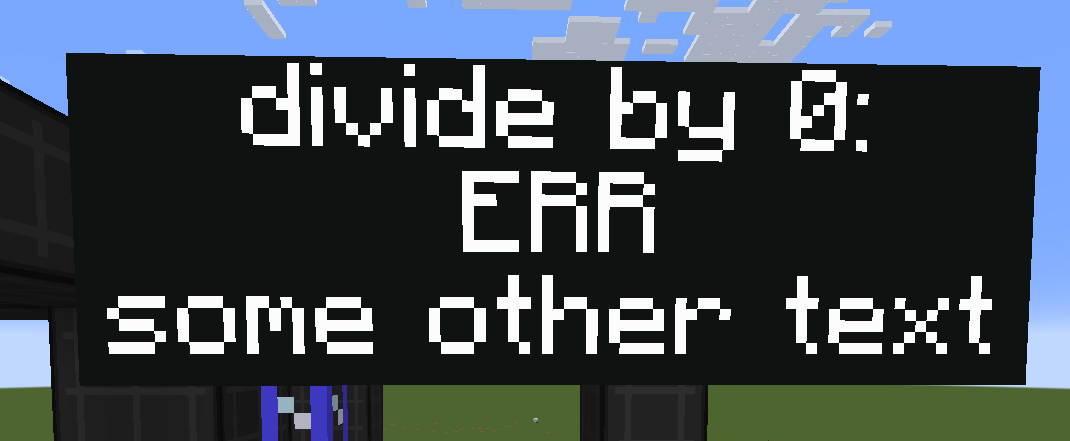
Stored stacks (rounded): &(&s^minecraft:iron_ingot / 64)
If parsing fails, the result becomes ERR.
Multi-Monitor Walls (Linked Mode)
You can stitch several monitors into a single large display on a wall (N/E/S/W facing).
Requirements
All monitors must:
- Be on the same wall face (same side/facing).
- Be powered and active.
- Have Linked Mode enabled (toggle in each monitor’s menu (default on)).
- Form a perfect rectangle (no gaps).
Ceiling/floor monitors (UP/DOWN) do not link into walls; they render as single tiles.
How rendering works
Only one monitor in the rectangle actually draws the text; the rest provide surface area.
The renderer uses the top-left tile of the rectangle (from the wall’s perspective) as the origin tile. Put your text on that one monitor to render across the whole wall.
Building steps
- Place your monitors in a perfect rectangle on a wall.
- Power the cable(s) behind them.
- Enable Linked Mode on each.
- Open the top-left monitor and configure the text.
Placement & rotation
- On walls (N/E/S/W): the text follows the wall orientation.
- On floor/ceiling (UP/DOWN): the monitor stores a spin captured from your facing at placement. To change it, break and place again while facing a different direction.
Tips & Troubleshooting
- No text shows: ensure the monitor is powered and active; for linked walls, edit the top-left tile.
- Wall not linking: check Linked Mode is enabled on every tile.